
In the last post we learned that a column reference can be interpreted one of three ways depending on where it’s being made:
- Current Row Reference
- Model Column Reference
- Table Column Reference (aka Temp Column Reference)
With the first two on the list being the most important to understand because they are the ones new DAX authors will encounter with the greatest frequency.
We also learned that all Iterators must be given a Per Row Formula (usually as the second argument). This is the formula that it will run once per row of a Temp Table. Within the Per Row Formula, you will often type in the name of a column to get “that row’s” value. This is called a Current Row Reference, or a reference that retrieves a single value of the current row.
In general, any column reference in DAX is a Current Row Reference, unless it is being made within one of a handful of functions that wants one of the other kinds of column references.
In this post we’re going to learn about the second kind of reference and why when we see it in our code, we need to envision it as something completely different than the first kind.
Setting Things Up
Let’s imagine that our business is interested in “order surplus”.
This just means, when a customer orders something, if they order more than one of the thing, anything past that first one thing is called surplus. So if I order 15 burgers, 14 are considered surplus. If I order 100 Salads, 99 are surplus. If I order 1 pasta plate, there is zero surplus.
(An odd example, but this keeps the math easy so we can focus on DAX).
If we wanted to find the max surplus for across our orders, one way we could do that is start by getting a table of all the unique quantities across our orders, then subtract 1 from each number, and keep the biggest number.
Here’s the DAX measure that does that:
Biggest Order Surplus =
MAXX(
    VALUES( Sale[Qty] ),
    Sale[Qty] - 1
)
We’ll be to coming back to the VALUES thing, but for now let’s focus on argument 2, just to spend a second reviewing what we learned in the last post. Let’s pull argument 2 out into isolation:
Sale[Qty] – 1
OK, so that is our Per Row Formula, MAXX will run this formula once per row of a table.
The very first thing in it is a Current Row Reference of Sale[Qty] followed by ” – 1″. So this Per Row Formula says:
“Get the value of Sale[Qty] for this row and subtract one from it.”
This will give us the surplus for each row. Here’s the Data Model, and the Power BI Visual:
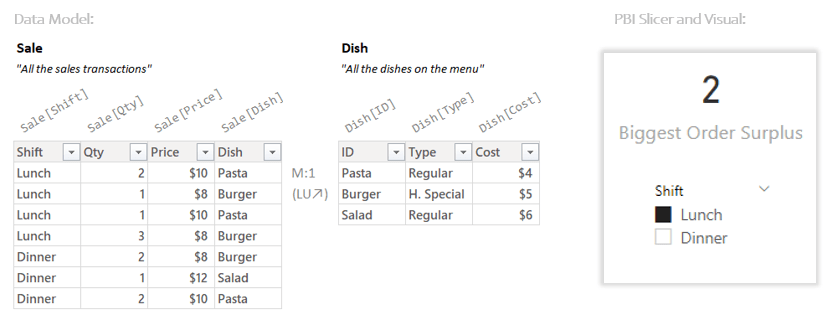
So when the slicer is set to “Lunch” the Biggest Order Surplus is 2. Scanning the Sale table in the Data Model we can see quantities of 2, 1, 1, and 3. So for the biggest order ever (3), the surplus is 2. Great, but how did the Measure get that number?
Here’s what the measure does:
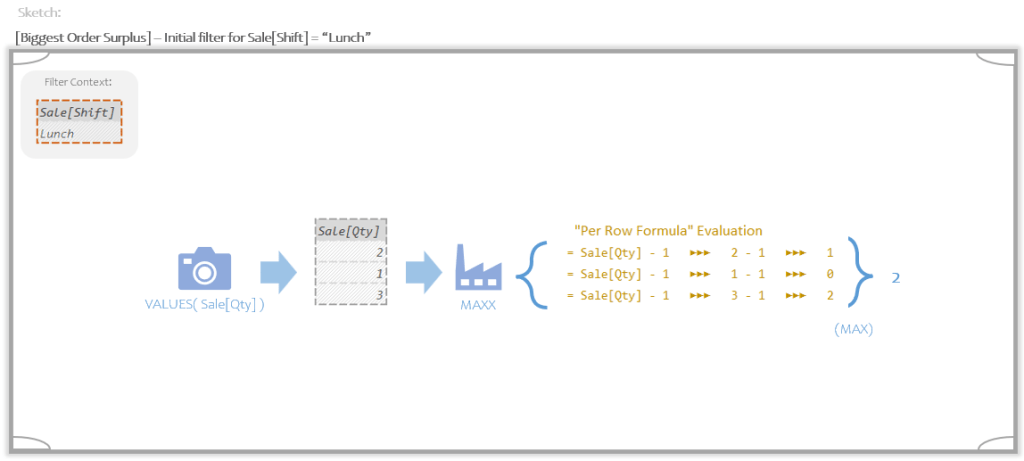
At a high level, VALUES produces a Temp Table with the distinct quantities sold at lunch. This Temp Table gets handed to MAX along with a Per Row Formula. The Per Row Formula runs once per row generating the numbers 1, 0, and 2. MAXX then takes the max of those numbers, which is 2.
Let’s zoom in on the MAXX Iterator and highlight the Current Row References and what they’re pointing at.
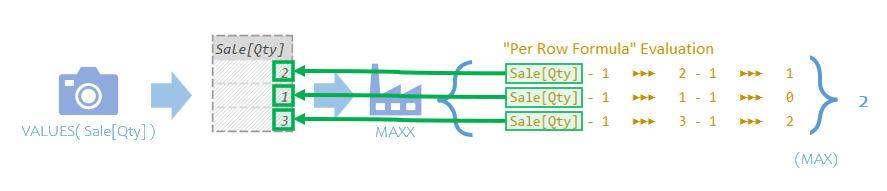
The Per Row Formula evaluates 3 times; once per row of the Temp Table. Each time the Current Row Reference of Sale[Qty] gets the value for “that row” so it can then subtract one from it.
I think we understand the Current Row Reference concept at this point. We need to try and better understand where that Temp Table with 3 rows came from.
Snapshotting Functions
Let’s look back at our code again:
Biggest Order Surplus =
MAXX(
    VALUES( Sale[Qty] ),
    Sale[Qty] - 1
)
Before we isolated argument 2, now let’s isolate argument 1:
VALUES( Sale[Qty] )
In addition to always needing a Per Row Formula, Iterators need to be given a Temp Table. This is because if you have a Per Row Formula, you’re going to need some rows to run it in. Giving the Iterator a Temp Table is our way of saying “Here are the rows we’d like to run this Per Row Formula in.”
For every Iterator function I can think of, the first argument is where you provide a Temp Table. Said more simply, the first argument is where you type out a bit of code that produces a Temp Table. If you type out some code that produces something other than a Temp Table, you will get an error.
It can be a long bit of code that produces a Temp Table, it can be a medium size bit of code that produces a Temp Table, in our example it is a very short bit of code that produces a Temp Table; just the function VALUES with an argument of Sale[Qty].
As you can probably guess, the meaning of Sale[Qty] here is different than before. That is because VALUES is one of the handful of functions that is expecting one of our other *kinds* of references. Specifically VALUES is looking for a Model Column Reference.
Before we define that term though, I want to focus on understanding Snapshotting Functions; VALUES being one of the most common examples.
A Snapshotting Function is any function that creates a Temp Table *based* off of either a table, a column, or multiple columns in the Data Model. There are many functions that create Temp Tables, but only Snapshotting functions are allowed to base them on things in our Data Model.
A function like GENEATESERIES is not a Snapshotting Function
(The term “Snapshotting” is used because it’s like these functions are “taking a picture” of the stuff in the Data Model. That’s why I draw them as cameras in my illustrations.)
So when we type Sale[Qty] inside of VALUES, we are telling VALUES which column in the Data Model we should base our new Temp Table on.
That’s a lot to take in though, let’s rewind a second.
Snapshotting Functions
It’s helpful to think of the Data Model as like one of those desert trays that gets wheeled around at a fancy restaurant.
It contains which *kinds* of deserts you can get, but when you point to the apple pie on the cart and say “Can I get that with ice cream?”, they don’t pull the slice right off the cart and hand it to you; instead, someone goes in the back and get you a fresh slice with a nice big scoop of ice cream on the side. What you get is *like* what was on the cart, but it is its’ own distinct thing you can make changes to (like adding ice cream).
The Data Model contains Tables and Columns you can get a copy of, but it’s always a copy, never the original.
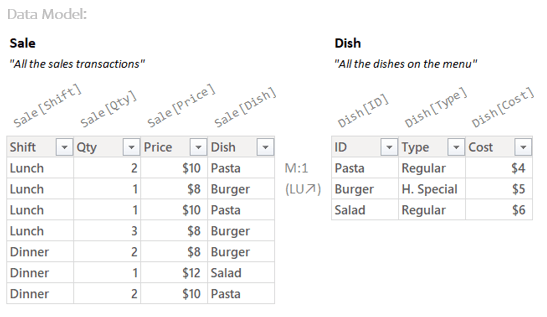
So if your Data Model looks like the above, that is the stuff you can request copies of. You can get a copy of just the Sale[Qty] column, you can get a copy of the whole Sale table. Want the original? Too bad, copies only.
(I call these copies “Temp Tables” or “Table Values”. For the more technical readers these are “logical copies” which means they are tied to the original but the actual content of them isn’t stored a second time in memory. For new authors though, that’s way, way, way too much technical detail and they should just think “copy” as that conveys the critical idea that you need to think of them as separate things from the original.)
You write column references or table references to “point” at which Column or Table in the Data Model you’d like a copy of. Exactly which Snapshotting function you place your pointer into determines the specifics what kind of a copy you’d like (filter/unfiltered, etc).
Rephrased:
VALUES( Sale[Qty] )
…points to the Sale[Qty] column in the Data Model (aka desert tray) and says:
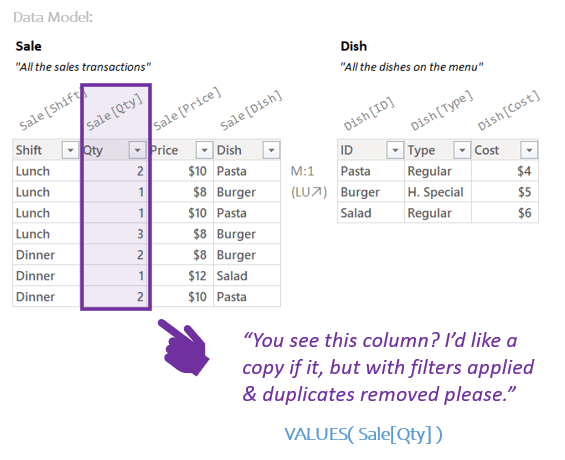
Sale[Qty] is the “You see this column?” part.
VALUES( ) is the “I’d like a copy of it, but with filters applied & duplicates removed please” part.
The result is the following Temp Table (the “copy”):
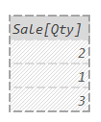
The VALUES function demands that you to point to exactly *which* column in the Date Model you’d like a copy of. This pointing is done by typing in one of the column names that exists *in the Data Model*. VALUES won’t let you point elsewhere.
Rephrased, you must give VALUES a reference to a thing in the Data Model. If you give it a reference like Sale[Qty] it will *only* look in the Data Model for a thing with that name.
(For just the advanced folks: Technically with VALUES, instead of pointing to a single column, you can also type in the name of an entire table in the Data Model and get a copy of the whole table with filters applied and duplicates removed. The key principle stands though, with VALUES you still have to type in the name of *something* in the Data Model. If you type in “Sale[Qty]” it will go look in the Data Model for a column with that name; if you type in “Sale”, it will go look in the Data Model for an entire table with that name. If you don’t type in the name of either a table or a column in the data model, you will get an error.)
So zooming out a second:
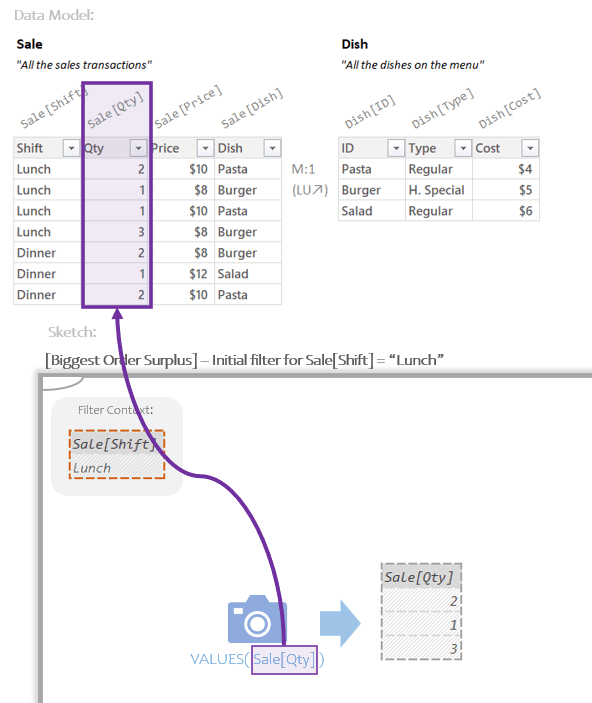
When VALUES gets the Sale[Qty] reference it immediately looks up to the Data Model and says:
“Hey, where is the a thing in here called Sale[Qty]? I’m supposed to make a copy of it. Oh, there it is.”
It makes the copy, applies the filter for lunch (which, in our example has no effect), and removes duplicates. The result is the 3 row, 1 column Temp Table just to the right of the camera.
Because VALUES will only look within the Data Model for a column with that name, we can call any column reference inside VALUES a Model Column Reference.
A Model Column Reference is any column reference that points to columns in the Data Model. They say “I want to do something with *that* column in the Data Model”.
The Model Column Reference
Column references are only Model Column References if they are made inside a handful of functions that work with the Data Model directly.
The good news is that there aren’t many of these. The less good news is that you a couple of them all the time.
The most common by far are the Snapshotting Functions, of which VALUES and ALL are the most common example. Here are several Snapshotting functions that make slightly different kinds of copies of a column in the Data Model:
VALUES( Sale[Qty] )
ALL( Sale[Qty] )
ALLSELECTED( Sale[Qty] )
DISTINCT( Sale[Qty] )
All of these understand the reference to Sale[Qty] as a column in the Data Model they will be making some sort of copy of. Which is to say, used in these functions Sale[Qty] is a Model Column Reference.
Let’s compare the what the first two are asking for:

Both of them are making copies of the column in the Data Model, both will remove duplicate values. The only difference is the VALUES applies filters to this copy and ALL does not apply filters to the copy.
While the biggest consumer of Model Column References in DAX are Snapshotting Functions like above, there are other kinds functions that use Model Column References as well.
For example, REMOVEFILTERS is a function that, well, removes filters. All the details of how you use it is too much for this post; what we care about here though, is that you give the function names of things in the Data Model to remove filters of.
When you type:
REMOVEFILTERS( Sale[Shift] )
What you are saying is:
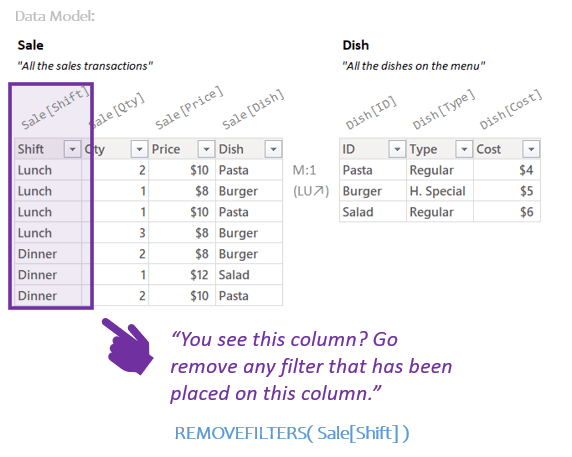
Another example is the ISFILTERED function. It checks to see if there’s a filter in place on a certain column.
When you type:
ISFILTERED( Sale[Dish] )
What you are saying is:

In our example, since the user clicked on “Lunch” on a slicer, this would return TRUE. If that slicer was cleared, it would return FALSE.
There are other examples too, but it can be easy to get overwhelmed and me giving you a giant list of functions is both unpleasant and unhelpful.
The Rule of Thumb
For new DAX users, of all the functions that take Model Column References, the ones you want to remember are VALUES and ALL.
So the rule of thumb for new users is:
“When you see a column reference, you should immediately look to see if it is being made in the VALUES or ALL function. If it is, then the reference is definitely a Model Column Reference. If it is not, it is most likely a Current Row Reference.”
So if we imagine code snippets like:
MINX(
    VALUES( Sale[Price] ),
    Sale[Price]
)
or
FILTER(
    ALL( Dish[ID] ),
    Dish[ID] = "Pasta"
)
The two column references that appear inside of VALUES and ALL are Model Column References. The other two (which appear in the Per Row Formulas) are Current Row References.
When you spot a Model Column Reference (the ones in VALUES or ALL) you should imagine it looking upward to the Data Model to point to a column that the function will use.
When you see a Current Row Reference, you should imagine it looking to the left to go get a value in the current row.
In the Biggest Order Surplus measure we were focused on in this post, that works out like this:

The reference to Sale[Qty] inside VALUES is a Model Column Reference, and therefore looks up to the Data Model to find a column with that name to make a filtered, deduplicated copy of. The reference to Sale[Qty] made in the Per Row Formula is a Current Row Reference (not being made in either VALUES or ALL, as per our rule of thumb) and therefore looks to the left to find the value in the current row with than name.
So now that we have a better sense of the two main column reference types, how exactly do you better tell them apart; and when you come across a column reference in your code, what image should pop up in your head?
That’s the topic of the Part 3.
 Brian Grant on BI